Friday, 23 October 2015

Final Front Cover Post


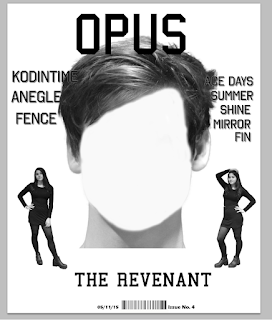
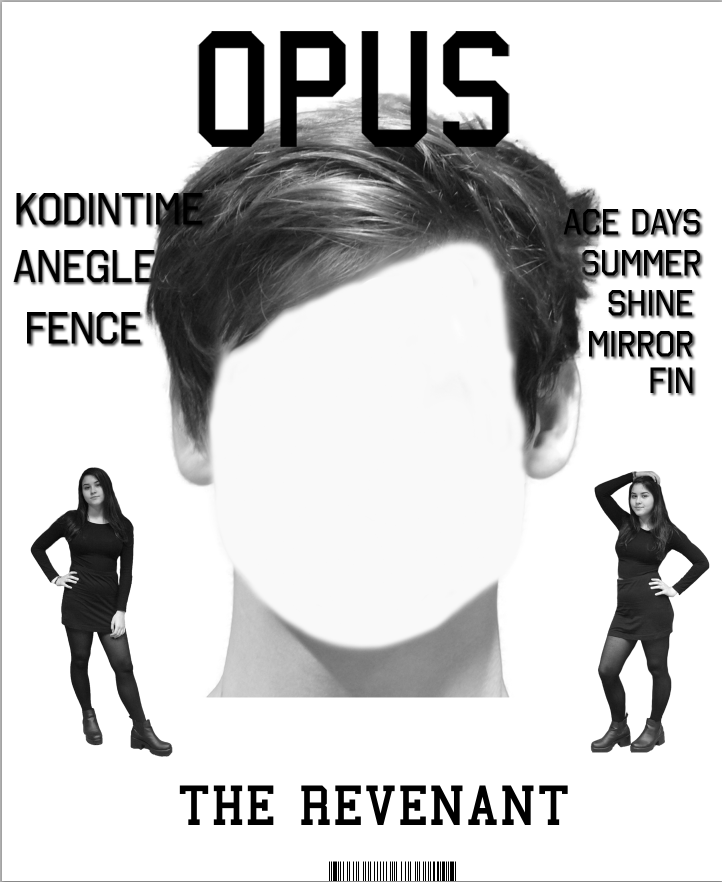
Finally I have placed the grid onto the page to ensure that the text is in lined with one another as my page is symmetrical I have tried to in line each set of text with one another.
 

I have added more blending options to the text to that it is more visible as it seems hard to see Kodintime as it was a similar colour to the artist’s hair. I have added an outer glow with the colour of the artist’s neck, grey. I have also moved up my barcode as usually when magazines are made they slice off the bottom of the page slightly and I have added the issue number and date to either size of the barcode.

Front Cover Edits


I took two images of my female model dressed in provocative black clothing as this is usually how women are dressed on magazines. I decided on the black theme as it went with the black and white theme. I placed these two images onto the page. The effect I was looking for was that my female model was positioned smaller than the main image of the male in the band. I positioned her to the left and right of the where the main image was going to be placed.

To get the image the way it is, I had to edit the image on Photoshop. I used the magic wand tool to delete the background of the image; this left me with a transparent background and the image. Due to the fact I used the green room to take the images they had a hint of green almost everywhere. In order to get the image back to its normal colour I used the colour replacement too add the skin colour and outfit back to the normal image. I then added a greyscale feature to follow the theme of the magazine.


The main image was by far the hardest part of the making of my magazine. I wanted something unique to be added to my magazine so I decided I didn't want the face of the male artist on the front cover. In order to delete this I chose an area of the face with a colour I liked and I brushed the colour over the top of the face. I ensured that when I was doing this I kept the shape of his face. I decided this simple design was to be my front cover.


I have decided since then that my design is too simple and needed a little more added to it. From doing more research into notion front covers I have notice that most of the time the front covers feature the names of other bands and artists that are included inside the magazine. So from this I have decided to create some bands and artists and place them on my front cover. I brought the text in front of the image so that you could see the text. I added a shadow so that the text was more visible.
I have added more blending options to the text to that it is more visible as it seems hard to see Kodintime as it was a similar colour to the artist’s hair. I have added an outer glow with the colour of the artist’s neck, grey. I have also moved up my barcode as usually when magazines are made they slice off the bottom of the page slightly and I have added the issue number and date to either size of the barcode.


My Front Cover

Front Cover
 
For being such a simple design this piece had been the hardest to develop. I wanted my front cover to follow notions simplistic theme as well as adding a unique twist.
 

The barcode


The first step in the making of my magazine was to decide where to place the barcode. I used an image from the internet and cropped it so it was not as large. I placed it in the centre at the bottom of the page so it did not look like it had just been placed anywhere on the magazine. I prefer when magazine have them hidden away a bit instead of in the corner where they look like big blocks.


The Masthead


I was pretty much still with a blank page so the next step was to decide where what I was going to do about making the title of the magazine. Since I had already began to use to 'Octin College' font I decided it would be bet to follow this theme and create my magazine name with this. I have decided to call my magazine 'OPUS' as I liked the fact it meant any artistic work on a large scale. I placed the title of my magazine in this particular position as magazine titles are usually placed here. The large black letter stand out to my target audience.


The band title


The next step was to make the title of my band and place it on the front cover. I used the same font as I had previously yet I made the text smaller and less noticeable so it did not take away he attention of the title of the magazine. I placed near the bottom of the page so that it would be positioned underneath the central image of my front cover.



More Double Page Edits


The page looked plain and I didn't feel as though it wouldn't catch enough readers attention so I decided to change it around slightly. I decided against a concert image and decided to add a block colour to the background so I asked a few of my class mates and they decided that the image would look better if it as larger in the centre of the page and adding colour would catch their attention more. Keeping this in mind I increased the size of the image and added a grey background behind the image. I placed the names of the artists next to their heads so that the readers would understand who they are easily.


I have had to justify my reasoning as to why I have decided on a double page spread. I have added a thicker boarder and is now similar to the little white lies design. 75% of the people I asked said the page was more effective with the boarder on the page.
 
After looking at various little white lies magazine I have noticed that there are no page numbers of the right hand side of the age if there is a number placed on it. Therefore I have deleted the page number from the corner of the page.
 

Double Page Edits


I placed the final smoothed black and white image onto my double paged spread.
I used the college front I have used throughout the magazine to create the word introducing onto the top centre part of my double page spread. I used the line tool to create a shape around this.
 

I have added the two artists names with a font I think contrasts well with the page design. I am thinking about adding an image of a concert stage onto the background of the page to create a better effect and make my design more unique however because I have to use my own taken images I will have to insert this at a later date.


Double Page Spread Edits


I have decided to use this image as it is a medium close up of the band as well as the fact that 75% of the people I asked chose this image out of the 3 I questioned. I did not like the background of the image as it did not represent a band on stage. I decide that the best thing to do was to make a transparent background for the image so that I could insert my own image into the background.


I used the quick selection tool to delete the background from the image. I selected the outline of the band carefully so that I did not delete any of the features of the image I wanted.
 
Deleting this selected area left me with a transparent background meaning I could copy the image onto my double page spread. Once I had smoothed the edges of the image.


Double Page Spread

My Double Page Spread
 
To make my double page spread I had to double the dimensions of the page sixe from 20x24.4 to 40x24.4
.
 
 
I then went onto 1001 font and selected the font I have decided to use throughout my magazine. I typed in the name of the band and inserted the title name into Photoshop to add to my double page spread.

I then inserted the title onto my double page spread. I have positioned it onto the bottom of the page as the image of the band is going to be the centre piece of this page.